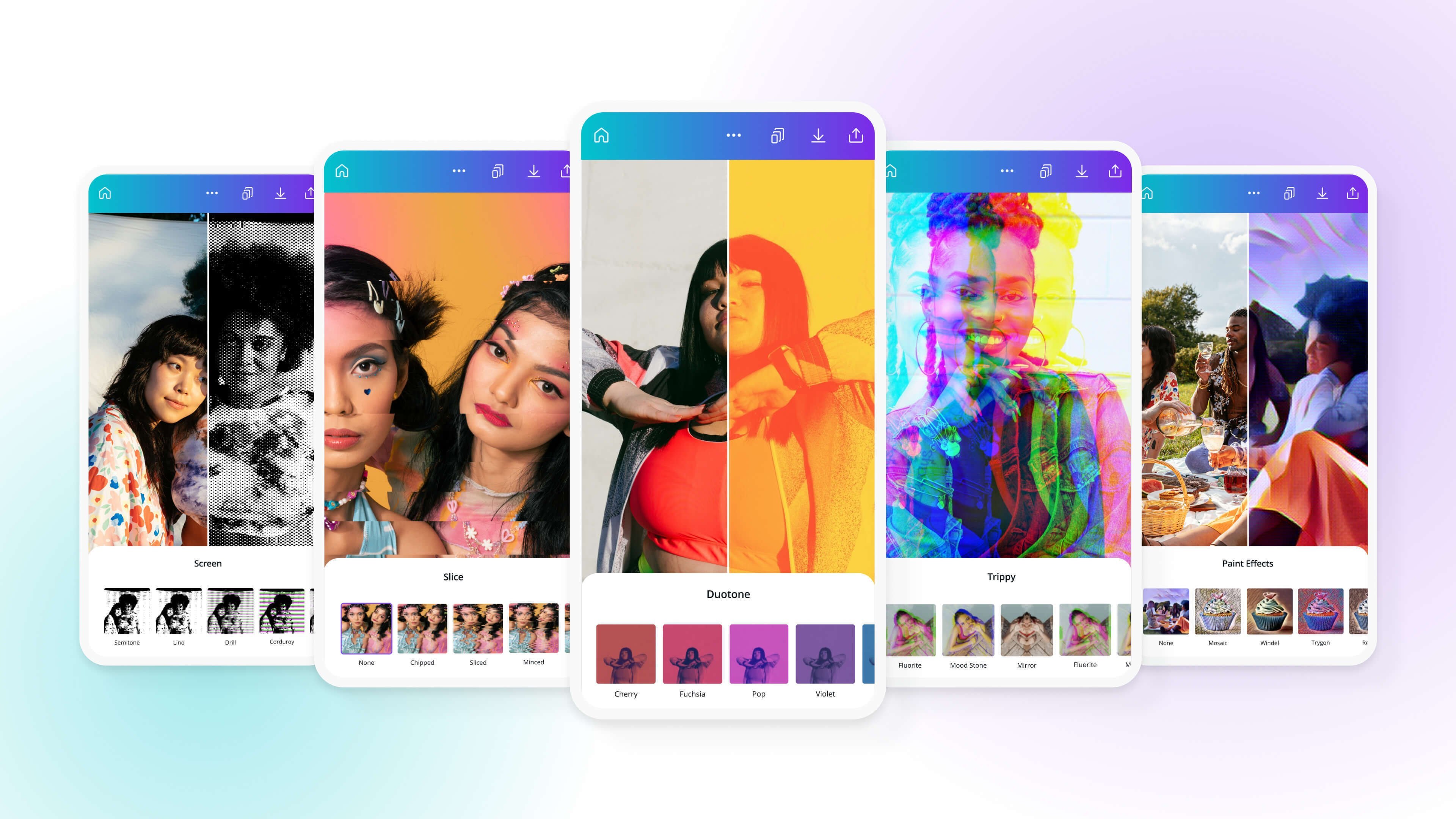
Canva Photo Editor is a user-friendly tool for creating and editing images. It offers a wide range of features and templates.
Canva Photo Editor simplifies photo editing for beginners and professionals alike. With its intuitive interface, users can easily enhance images, apply filters, and add text. Canva provides numerous templates for social media posts, presentations, and marketing materials. The platform’s drag-and-drop functionality ensures a seamless editing experience.
Users can access a vast library of stock photos, icons, and fonts to customize their designs. Canva Photo Editor also supports collaboration, allowing teams to work on projects in real-time. Its cloud-based nature ensures that your work is accessible from any device. Overall, Canva Photo Editor is an essential tool for anyone looking to create stunning visuals effortlessly.
Credit: www.canva.com
Introduction To Canva Photo Editor
Welcome to the Introduction to Canva Photo Editor. This powerful tool is transforming the way users edit photos online. It’s user-friendly and packed with features, making photo editing accessible to everyone.
A Brief History
Canva was founded in 2012 by Melanie Perkins, Cliff Obrecht, and Cameron Adams. Initially, it was a design tool for non-designers. Over the years, Canva expanded its features, including the photo editor. The tool quickly became popular due to its simplicity and efficiency.
Why It’s Gaining Popularity
The Canva Photo Editor is loved by millions for many reasons:
- Ease of Use: The interface is intuitive and easy to navigate.
- Wide Range of Tools: From basic adjustments to advanced effects, it has everything.
- Templates and Resources: Canva offers a huge library of templates and stock photos.
- Accessibility: It’s available on both web and mobile platforms.
Below is a comparison table highlighting some key features:
| Feature | Description |
|---|---|
| Basic Adjustments | Brightness, Contrast, Saturation |
| Filters | Pre-set filters for quick edits |
| Advanced Effects | Blur, Vignette, and more |
| Templates | Thousands of customizable templates |
| Stock Photos | Access to millions of images |
With its growing feature set and ease of use, Canva Photo Editor is becoming a favorite tool for both beginners and pros. It’s no surprise that it’s gaining popularity so quickly.
Getting Started With Canva
Canva is a powerful tool for editing photos. It is user-friendly and perfect for beginners. Let’s explore how to get started with Canva and make beautiful photos.
Creating An Account
To begin, you need to create an account. Follow these simple steps:
- Go to the Canva website.
- Click the Sign Up button.
- Enter your email address and create a password.
- Alternatively, sign up using your Google or Facebook account.
Once registered, you will receive a confirmation email. Click the link to verify your account. Now, you are ready to start using Canva.
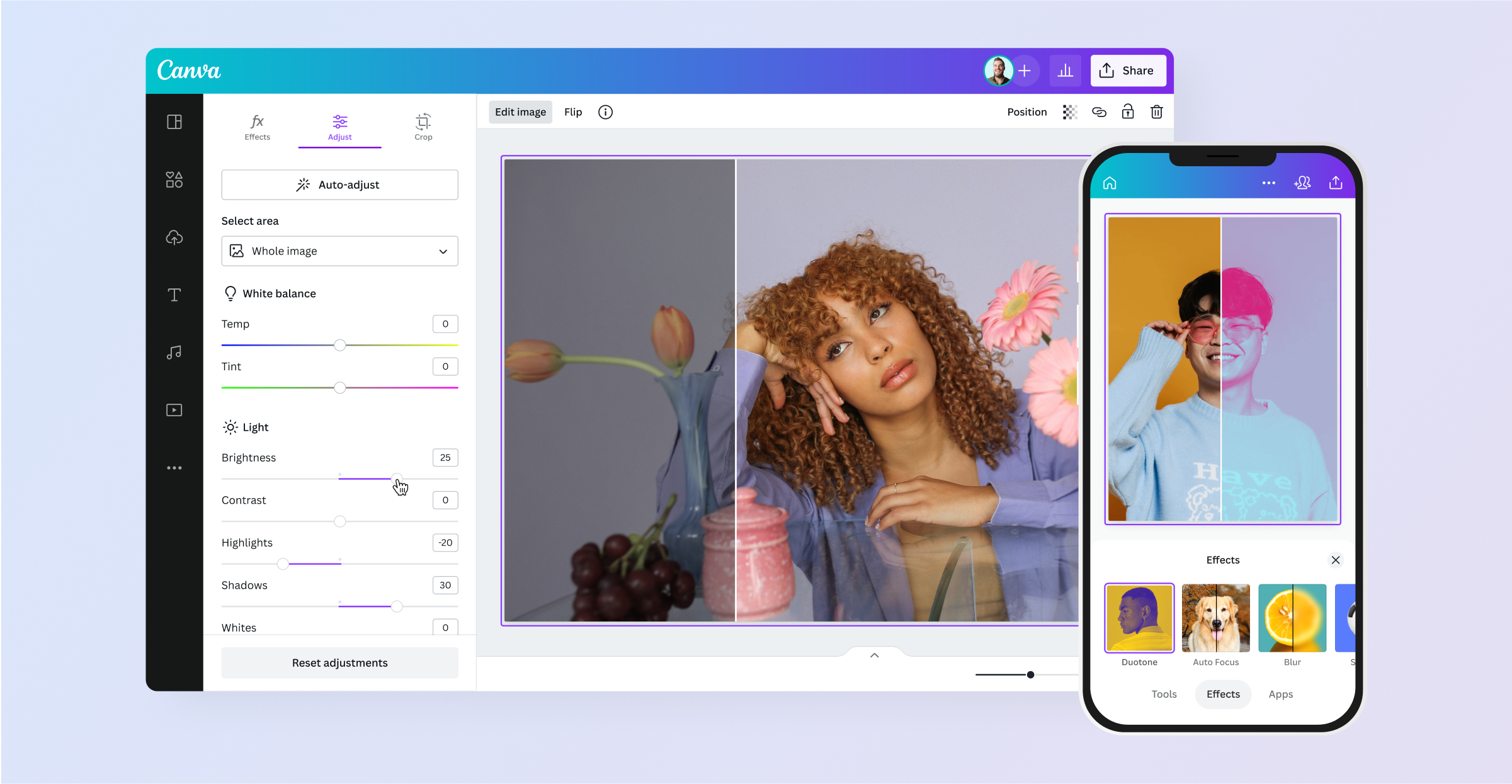
Navigating The Interface
The Canva interface is intuitive and easy to navigate. Here’s what you need to know:
| Section | Description |
|---|---|
| Dashboard | Your starting point. Find recent designs and templates here. |
| Side Panel | Contains tools like Text, Elements, and Uploads. |
| Canvas | This is where you create and edit your design. |
| Top Bar | Includes options to Save and Download your work. |
Use the Side Panel to add elements. Drag and drop them onto the Canvas. The Top Bar helps you manage your design. Save your work frequently to avoid losing progress.
Explore these sections to familiarize yourself with the interface. Practice will make you more efficient.
Fundamentals Of Photo Editing
Editing photos is easy with Canva Photo Editor. You can make your pictures look amazing. Let’s explore the basics of photo editing.
Basic Tools And Features
Canva offers many tools to edit photos. Here are some important ones:
- Crop: Cut out unwanted parts of your photo.
- Resize: Change the size of your image.
- Rotate: Turn your photo left or right.
- Flip: Create a mirror image of your photo.
These tools help you create the perfect image.
Adjusting Image Quality
Improving image quality is simple with Canva. Here are some options:
- Brightness: Make your image lighter or darker.
- Contrast: Increase or decrease the difference between light and dark areas.
- Saturation: Enhance or reduce the colors.
- Sharpness: Make details clearer or softer.
Use these adjustments to enhance your photos.
Canva Photo Editor makes photo editing easy and fun.
Advanced Features For Creativity
Canva Photo Editor offers advanced features that ignite creativity. These features help users craft stunning visuals effortlessly.
Utilizing Layers And Filters
Layers and filters in Canva Photo Editor enhance your photos. Layers allow multiple elements in one design without merging. You can move, edit, or delete layers individually.
Filters transform photos with just one click. They adjust color, brightness, and contrast. Filters give your photos a unique look and feel. Here are some popular filters:
- Retro
- Grayscale
- Vivid
Adding Text And Graphics
Adding text and graphics in Canva is simple. You can choose from a variety of fonts, colors, and styles. This allows you to personalize your designs.
Graphics include shapes, icons, and illustrations. They add visual interest and context. Canva provides a vast library of graphics. You can search and select what fits your design best.
Here are steps to add text and graphics:
- Click the “Text” button on the sidebar.
- Select a text box style.
- Type your message in the text box.
- Customize font, size, and color.
- Click the “Elements” button for graphics.
- Browse or search for graphics.
- Click to add graphics to your design.
These features empower users to create engaging and professional visuals. Start exploring these tools to elevate your designs today.
Designing With Templates
Creating stunning visuals is easy with Canva Photo Editor. Their templates save time and effort. They help you design like a pro. Let’s explore how to use these templates effectively.
Choosing The Right Template
Canva offers a vast library of templates. You can find templates for social media posts, flyers, business cards, and more. To choose the right one, first, identify your design needs. Are you making an Instagram post or a business presentation?
Browse through the categories to find the perfect fit. Each template is professionally designed. They ensure your visuals look polished and appealing. You can preview each template before selecting it. This helps you make an informed choice.
Customizing For Your Needs
After selecting a template, the next step is customization. You can personalize every element to suit your brand or style. Change the text, colors, and images to match your vision.
With Canva’s drag-and-drop feature, customization is simple. Click on any element to edit it. Want to change the background? Just upload your own image or choose from Canva’s library.
Use the text editor to update fonts and sizes. Add your own branding elements like logos or icons. The possibilities are endless. This flexibility ensures your design stands out and meets your needs.
| Template Type | Best For |
|---|---|
| Social Media | Instagram, Facebook, Twitter posts |
| Business Cards | Professional networking |
| Flyers | Event promotions |
In summary, Canva Photo Editor’s templates are a powerful tool. They simplify the design process. With the right template and customization, your designs will shine.
Collaboration And Sharing
Collaboration and sharing are key features of Canva Photo Editor. These features make teamwork easier and ensure your designs reach the right audience. Let’s dive into how Canva helps you work with teams and share your designs seamlessly.
Working With Teams
Canva Photo Editor allows you to easily collaborate with your team. You can invite team members to join your design projects. Simply click the “Share” button and enter their email addresses.
Once invited, team members can view and edit designs. This ensures everyone stays on the same page. You can also assign roles to team members. This helps manage permissions and responsibilities.
- Admins: Full access to all features
- Members: Can edit and share designs
- Viewers: Can only view designs
Canva’s real-time collaboration feature is a game-changer. Multiple people can edit the same design simultaneously. This speeds up the design process and fosters creativity.
Sharing Your Designs
Sharing your designs with Canva is straightforward. You can share designs directly from the platform. Click the “Share” button to get started.
Choose how you want to share your design:
- Email: Send a direct link to specific recipients
- Social Media: Share on platforms like Facebook, Twitter, and LinkedIn
- Download: Export your design in various formats like PNG, JPG, or PDF
Canva also offers advanced sharing options. You can generate a link with view-only or edit permissions. This flexibility ensures your design reaches the right audience securely.
For businesses, Canva offers branding tools. You can create a brand kit with logos, fonts, and colors. This ensures consistent branding across all your designs.
With Canva Photo Editor, collaboration and sharing are simple and effective. These features make it easier to work together and share your creative work with the world.
Tips And Tricks For Better Designs
Creating eye-catching designs with Canva Photo Editor is easy. Follow these tips to make your designs stand out. You will learn to master color schemes and use fonts effectively.
Mastering Color Schemes
Choosing the right colors is crucial. It sets the mood of your design. Use the color wheel in Canva to find complementary colors. Stick to a limited palette of 3-5 colors. This keeps your design clean and professional.
Tip: Use the Color Picker tool to match colors from your images. This creates a cohesive look. You can also use predefined color palettes available in Canva. These are designed by professionals and work well together.
| Color Scheme | Usage |
|---|---|
| Monochromatic | For a clean, minimalist look |
| Analogous | For a harmonious and serene design |
| Complementary | For a vibrant and contrasting design |
Effective Use Of Fonts
Fonts can make or break your design. Choose fonts that match your theme. Limit your font choices to 2-3 per design. This maintains readability and consistency.
Tip: Use hierarchy to guide the viewer’s eye. The title should have the largest font size. Subheadings should be smaller, and the body text should be the smallest. You can use bold and italic styles to emphasize important words.
- Serif fonts: For a classic and formal look
- Sans-serif fonts: For a modern and clean look
- Script fonts: For a creative and elegant look
Remember to keep enough space between lines. This enhances readability and makes your design look balanced.
Leveraging Canva For Business
Leveraging Canva for Business is a game-changer. Canva Photo Editor offers a versatile platform for businesses of all sizes. It helps in creating visually stunning content with ease. Let’s explore how Canva can elevate your business.
Branding With Canva
Consistent branding is crucial for a business. Canva makes it simple. Create a brand kit with your logo, colors, and fonts. This ensures all your materials look cohesive.
You can design custom logos and social media graphics. Canva’s templates make the process quick. No design skills are needed. Just drag and drop elements to create unique designs.
Another great feature is the ability to share your brand kit. Team members can access it easily. This keeps your branding consistent across all platforms.
Marketing Materials Creation
Canva simplifies the creation of marketing materials. From flyers to business cards, the options are endless. You can choose from thousands of templates.
Here are some common marketing materials you can create with Canva:
- Social Media Posts
- Flyers
- Posters
- Business Cards
- Brochures
Canva also offers a wide range of stock photos and graphics. These can be easily added to your designs. The drag-and-drop feature makes the process smooth.
You can even create presentations with Canva. The templates are professional and easy to customize. This saves time and ensures a polished look.
Canva allows you to download your designs in various formats. This includes PDF, PNG, and JPEG. You can also share designs directly on social media.
| Material | Template Options | Best For |
|---|---|---|
| Social Media Posts | Hundreds | Engagement |
| Flyers | Dozens | Local Advertising |
| Business Cards | Many | Networking |
| Brochures | Several | Information Sharing |
Canva offers a seamless experience for businesses. Its tools and features are designed to help you succeed.
Mobile Editing With Canva
Canva Photo Editor is a powerful tool for creating stunning visuals. Mobile Editing with Canva makes it even easier to edit photos on the go. This feature-packed app is perfect for anyone who needs quick and easy photo editing.
Features Of The Canva App
The Canva app offers a wide range of features for mobile editing. Here are some of the most important:
- Templates: Access thousands of templates for social media, presentations, and more.
- Photo Filters: Enhance your photos with a variety of filters.
- Text Tools: Add text to your images with customizable fonts and colors.
- Stickers and Icons: Use stickers and icons to make your photos stand out.
- Collage Maker: Create stunning collages with just a few taps.
- Background Remover: Remove backgrounds from images easily.
Editing On-the-go
Editing photos on your mobile device has never been easier. With Canva, you can:
- Quickly Edit: Make quick edits to your photos with simple taps and swipes.
- Share Instantly: Share your edited photos directly to social media platforms.
- Save Drafts: Save your work and come back to it later.
- Collaborate: Work on projects with your team in real-time.
The Canva app is designed to be user-friendly and intuitive. This makes it perfect for both beginners and professionals. Whether you need to make a quick edit or create a detailed design, Canva has you covered.
Staying Inspired
Using the Canva Photo Editor is fun and easy. But staying inspired can be a challenge. Knowing where to find fresh ideas can make a big difference. Here are some ways to keep your creativity flowing.
Following Design Trends
Design trends change all the time. Keeping up with them helps your work stay modern. Canva offers many tools to help you follow these trends.
- Check the Template Library for new designs.
- Look at the Trending Section in Canva’s homepage.
- Follow popular designers on Canva for fresh ideas.
Exploring Community Creations
The Canva community is full of talented creators. Their work can spark new ideas for you. Explore what others are making and share your own work too.
- Browse the Discover section for inspiring projects.
- Join Canva groups to connect with other designers.
- Participate in design challenges to push your limits.
| Resource | How It Helps |
|---|---|
| Template Library | Offers a wide range of modern designs. |
| Trending Section | Shows what’s popular right now. |
| Discover Section | Features work from other Canva users. |
Troubleshooting Common Issues
Using the Canva Photo Editor is usually a smooth experience. But sometimes, you may encounter issues. This section helps you troubleshoot common problems effectively.
Fixing Upload Problems
Uploading issues can be frustrating, but they often have simple fixes. Below are some steps to resolve these problems:
- Check your internet connection. A weak connection can cause upload failures.
- Ensure your file format is supported. Canva supports JPEG, PNG, and SVG.
- Clear your browser’s cache and cookies. This can remove temporary files causing issues.
- Try using a different browser. Sometimes, browser-specific issues can hinder uploads.
If these steps don’t help, consider contacting Canva’s customer support.
Resolving Editing Glitches
Editing glitches can disrupt your creative flow. Here’s how to tackle them:
- Refresh the webpage. Sometimes, a simple refresh can fix minor glitches.
- Update your browser. An outdated browser can cause compatibility issues.
- Disable any browser extensions. Some extensions interfere with Canva’s functionality.
- Reduce the file size. Large files can slow down the editor and cause glitches.
If the problem persists, try switching to a different device. This can help identify if the issue is device-specific.
By following these tips, you can resolve most common issues in Canva Photo Editor.

Credit: www.canva.com
Future Of Canva And Photo Editing
Canva has become a favorite tool for designers. It offers simple yet powerful features. The future of Canva looks exciting with emerging technologies. Let’s explore what lies ahead for Canva and photo editing.
Emerging Features
Canva continues to evolve with new features. These features make photo editing easy and fun. Here are some upcoming features:
- Real-time Collaboration: Work with your team in real-time.
- Advanced Filters: Apply professional filters with one click.
- Custom Templates: Create and save your own templates.
- Enhanced Export Options: Export in various formats and sizes.
The Role Of Ai In Design
Artificial Intelligence (AI) is changing design tools. Canva is integrating AI to improve user experience. Here are some ways AI is playing a role:
| AI Feature | Benefit |
|---|---|
| Auto-Enhance: | Automatically adjust photo brightness and contrast. |
| Background Removal: | Remove backgrounds with a single click. |
| Design Suggestions: | Get smart design tips based on your project. |
AI makes Canva smarter and easier to use. This helps even beginners create stunning designs.
Stay tuned for more updates as Canva continues to innovate. The future of photo editing looks bright with Canva leading the way.
Credit: www.canva.com
Frequently Asked Questions
What Is Canva Photo Editor?
Canva Photo Editor is an online tool for editing images.
Is Canva Photo Editor Free To Use?
Yes, Canva offers a free version with basic editing features.
Can I Edit Photos On Canva Mobile App?
Yes, Canva’s mobile app allows photo editing on both iOS and Android devices.
Does Canva Photo Editor Support Filters?
Yes, Canva Photo Editor provides various filters to enhance your photos.
Can I Use Canva Photo Editor Offline?
No, Canva Photo Editor requires an internet connection to function.
Conclusion
Canva Photo Editor offers an intuitive and powerful tool for all your editing needs. Its user-friendly interface makes it accessible to everyone. Enhance your photos effortlessly with a variety of features. Give Canva Photo Editor a try and elevate your visual content with ease.
Start creating stunning images today.