Canvas itself does not record you. Recording depends on integrated tools like Respondus Monitor or proctoring software.
Canvas is a widely-used learning management system (LMS) in educational institutions. Users often wonder if Canvas can record them during online activities. While Canvas itself lacks direct recording capabilities, institutions may integrate third-party proctoring tools. These tools, such as Respondus Monitor, can record students during exams to prevent cheating.
Such integrations can make users feel monitored, but it’s essential to understand the specific tools in use. Knowing which proctoring software is active helps users stay informed and prepared. Always check your course guidelines or ask your instructor for clarity on monitoring practices. Stay aware and maintain academic integrity while using Canvas.
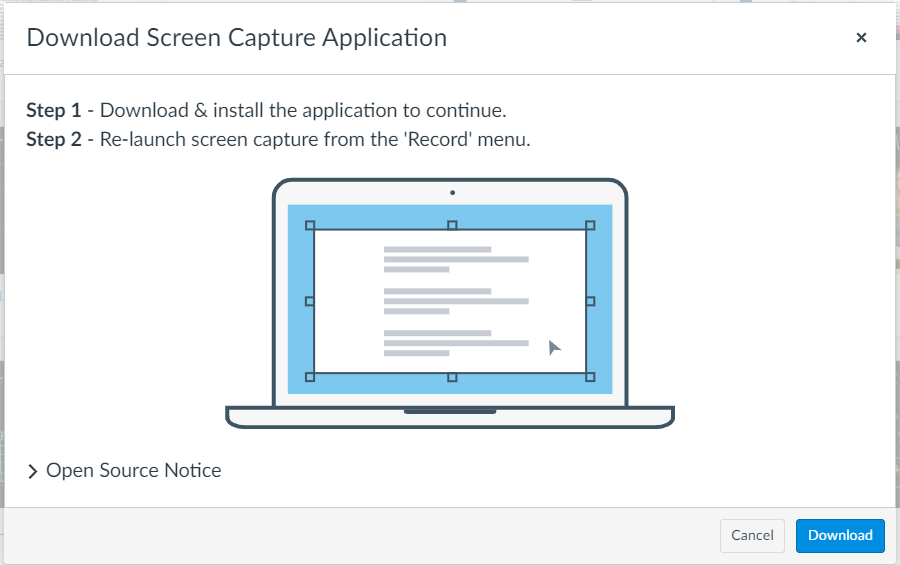
Credit: kb.cvtc.edu
The Canvas Learning Management System
The Canvas Learning Management System (LMS) is a widely used educational platform. It aids teachers and students in managing their coursework efficiently. Canvas provides various tools to enhance the learning experience. But, how can you know if Canvas is recording you?
Features That Enhance Learning
Canvas LMS offers several features that make online education effective:
- Interactive assignments: Students can submit assignments and get instant feedback.
- Discussion boards: These boards facilitate student interaction and collaboration.
- Gradebook: This tool helps track student progress and grades.
- Quizzes and Tests: Teachers can create quizzes to assess student understanding.
- Video Conferencing: Real-time video sessions with teachers and peers.
Privacy Concerns Within Educational Technology
Privacy is a significant concern in educational technology. Canvas may collect data to improve its services. But, users should know what data is being recorded.
Here are some common privacy concerns:
- Video and audio recording: Check if your webcam and microphone are active during sessions.
- Screen monitoring: Canvas might monitor your screen during exams.
- Location tracking: Some features might track your location for security purposes.
- Data sharing: Understand who has access to your data and for what purpose.
To ensure privacy, review Canvas’s privacy policy. Be aware of the permissions you grant to the app.
Canvas Recording Capabilities
Canvas is a popular learning management system (LMS). It helps teachers and students. Understanding its recording capabilities is important. Knowing what data Canvas collects can help protect your privacy.
Types Of Data Canvas Can Collect
Canvas gathers various types of data. This data helps monitor student activities. Some of the data Canvas collects include:
- Login Information: Canvas tracks when you log in and out.
- Page Views: It records the pages you visit.
- Interaction Data: Canvas logs clicks, submissions, and interactions.
- Quiz Data: It monitors quiz attempts and answers.
This data helps improve the learning experience. It can also be used to ensure academic integrity.
Understanding Canvas’s Quiz Log Auditor
The Quiz Log Auditor is a powerful feature. It records student actions during quizzes. This feature captures:
- Start and End Times: Records when you start and finish a quiz.
- Question Views: Tracks the time spent on each question.
- Answer Changes: Logs every change made to answers.
- Page Refreshes: Monitors any page reloads during the quiz.
The Quiz Log Auditor helps teachers spot unusual activity. It ensures fair play and integrity in exams.
Indicators Of Canvas Surveillance
Canvas is widely used for online learning. It’s important to know if it records you. There are several indicators to check. Keep reading to learn more.
Visual Cues Of Recording
Visual cues are the easiest to spot. Look for the following signs:
- A red dot near the camera icon.
- A recording message on your screen.
- The camera light is on.
These visual cues can help you know if Canvas is recording. Always check these signs before starting your session.
System Logs And Monitoring Alerts
System logs and monitoring alerts provide another layer of information. These logs can show detailed data about recordings.
| Indicator | Description |
|---|---|
| Log Entries | Check for entries with recording tags. |
| Alerts | Look for pop-up notifications or alerts. |
Accessing these logs can provide additional insights. You may need admin access for detailed logs.
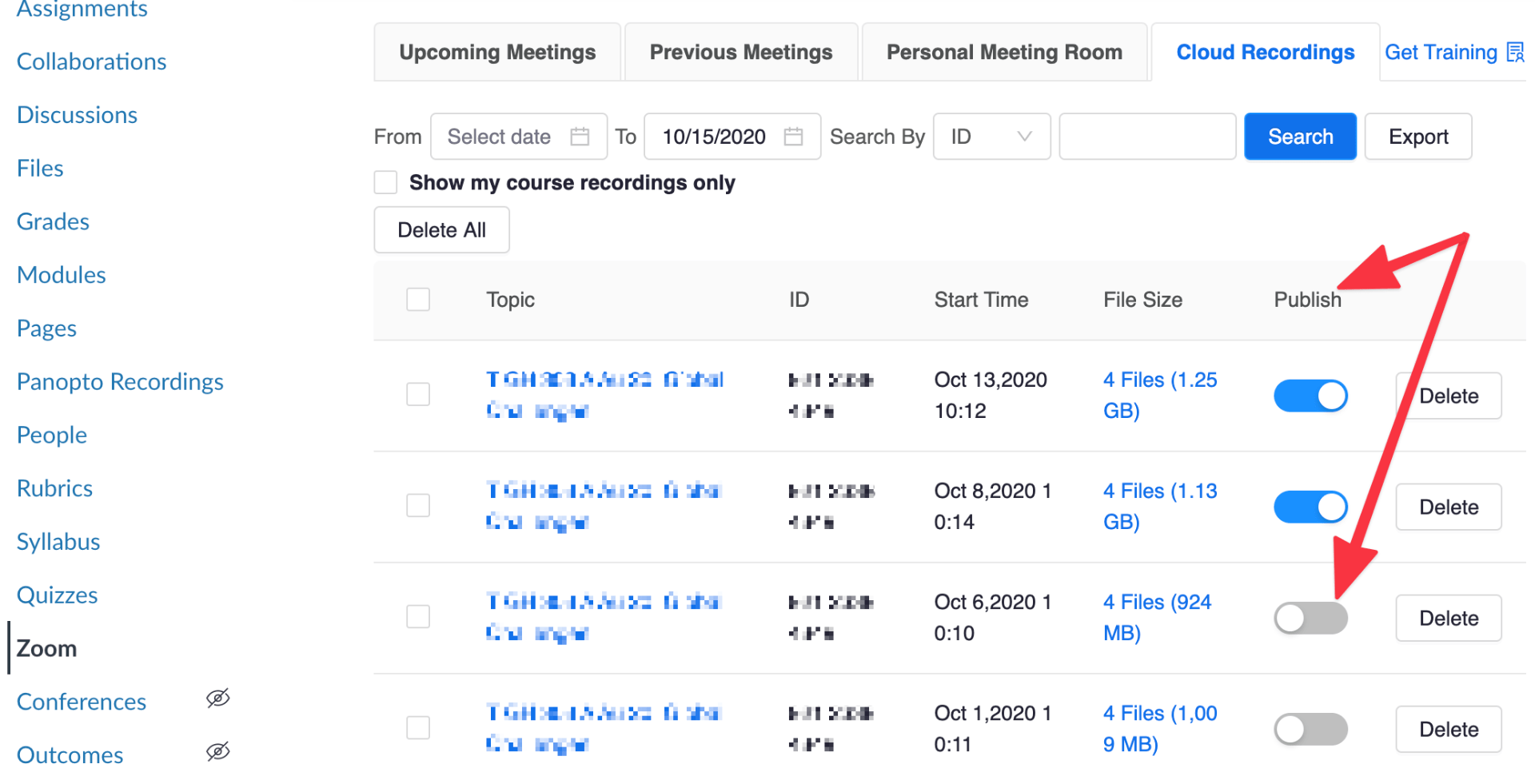
Credit: sites.uw.edu
Protecting Your Privacy On Canvas
Canvas is a popular learning management system used by many educational institutions. It’s essential to understand how to protect your privacy while using Canvas. This section will provide useful tips to keep your data secure and inform you of your rights as a student.
Best Practices For Data Security
Follow these best practices to keep your data secure on Canvas:
- Use Strong Passwords: Create a password with a mix of letters, numbers, and symbols.
- Enable Two-Factor Authentication: Add an extra layer of security by using two-factor authentication.
- Log Out After Use: Always log out of Canvas when you’re done.
- Secure Your Devices: Keep your devices updated and use antivirus software.
- Avoid Public Wi-Fi: Public networks can be unsafe. Use a private, secure connection.
Knowing Your Rights As A Student
Understanding your rights helps you protect your privacy:
- Review Privacy Policies: Read the privacy policies of your institution and Canvas.
- Ask Questions: Contact your institution if you have privacy concerns.
- Control Your Data: Know what data is collected and how it’s used.
- Seek Consent: Ensure you give consent before data is collected.
- Access Your Information: You have the right to access and review your data.
By following these best practices and understanding your rights, you can better protect your privacy on Canvas.
Navigating Canvas Without Fear
Using Canvas should be a stress-free experience. Many students worry about whether Canvas is recording them. This fear can be distracting. Let’s break down the myths and build trust.
Debunking Myths About Canvas Recording
Many myths surround Canvas and its capabilities. It’s vital to know the truth.
- Canvas does not record your screen.
- Canvas cannot access your webcam without your permission.
- Canvas does not track your keystrokes.
Canvas focuses on enhancing learning. It does not invade privacy. Understanding these facts can ease your mind.
Building Trust Through Transparency
Canvas prioritizes user privacy and security. The platform is designed to be safe.
| Feature | Privacy Level |
|---|---|
| Screen Recording | Not Available |
| Webcam Access | Permission Required |
| Keystroke Tracking | Not Available |
Knowing these features helps build trust. Canvas is transparent about its functions. Always check permissions and settings. Stay informed and use Canvas without fear.

Credit: www.amazon.com
Frequently Asked Questions
How Do You Know If Canvas Is Proctored?
Canvas is proctored if it uses tools like Respondus Monitor or Proctorio during exams. Look for instructions or notifications in your course.
Can Canvas Tell If You Are Screen Recording?
Canvas cannot directly detect screen recording. It relies on browser activity tracking and proctoring software to monitor behavior.
How Does Canvas Detect Cheating?
Canvas detects cheating by monitoring activity logs, tracking mouse movements, and using proctoring tools. It analyzes behavior patterns, flags suspicious activities, and can record video and audio.
Can Canvas Video Record You?
Canvas itself cannot record you. However, instructors can use integrated tools like Zoom or Panopto for recording.
Conclusion
Understanding if Canvas is recording you is crucial for privacy. Keep an eye on browser permissions and indicators. Stay informed about your institution’s policies. Being proactive ensures your privacy is protected. Always remain vigilant and aware of your digital surroundings.
This way, you can navigate Canvas with confidence and peace of mind.